We may receive commission on purchases made from links.
So, you are tired of seeing the rotating ads or Amazon’s preloaded graphics whenever you put your Kindle in sleep mode. This makes sense, especially if you’re an avid reader and spend a lot of time on your e-reader. In this part, we’ll tell you how to change your Kindle sleep screen and how to personalize it if you want.
How to remove Kindle special offer
Kindles with special offers or lockscreen ads typically cost $20 less than versions without them. These devices will show you a cycle of ads for books, for more Kindle devices, or for Kindle Unlimited whenever you put your Kindle in sleep mode. Unless your device is ad-supported, you can’t customize your screensaver, so your first step is removing special offers from your e-reader, which will cost you some money. If your Kindle doesn’t have lockscreen ads, you can skip this step. But if it does, you can follow these instructions:
1. On desktop, go to the Amazon website, log in, and click the hamburger menu on the left side of the screen.
- Under Digital content and devices, go to Kindle e-readers and books.
- On the next screen, click Manage content and devices under Apps and resources.
- On the new page that loads, click Devices near the top of the screen. If you have more than one Kindle associated with your account, click the box marked Kindle under Amazon Devices, and then select the e-reader you want.
- In the special offers box below, you’ll find a button to remove the $20 offer. Again, you’ll have to pay for this, as Amazon says you got the original $20 discount in exchange for receiving ads.
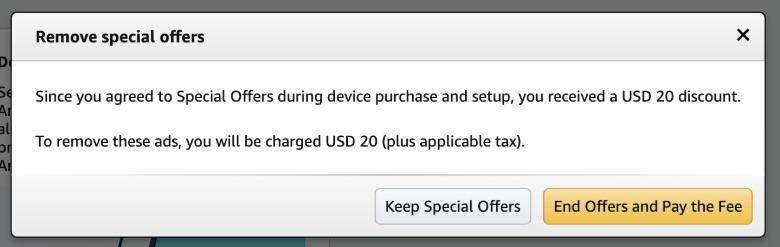 Screenshot by Mariela Moon (Amazon)
2. Launch the Amazon app on your mobile.
- Go to the “Alexa for Shopping” tab on the bottom right corner of your screen.
- Type “I want to end the special offer on my Kindle.” Alexa will link you to the Manage Devices page.
- From there, select a Kindle and scroll down to end the special $20 offer.
Comment: If you’re not in the US but somehow have a US-version Kindle, you may have trouble removing lockscreen ads. Amazon will ask you to add a US address and a card with US billing so you can pay $20 to remove them. Without both it will not be possible to proceed to the next step. You can try talking to customer service and politely ask if they can disable the special offer for you at no cost, but there’s no guarantee this will work.
How to Display a Book Cover as Your Kindle Screensaver
Once you remove the lockscreen ads, or if you’ve never had them before, you’ll get a rotation of Amazon-provided pictures as your screensaver. Those with newer Kindles have the option to use the cover of the book you’re currently reading (see below for a full list of supported models). Follow these steps to make sure this feature is turned on:
- Tap the three-dot menu at the top right corner of your Kindle.
- Go to device options. Find Display Cover and toggle it on.
- On new or updated devices, you’ll find the “Show cover on lock screen” option in the “Screen & Brightness” section. Just toggle it.
Comment: The option to use a book cover as a screensaver is only available on the following models:
 Amazon
How to Use Custom Images as Your Kindle Screensaver
Unfortunately, there’s no way to use custom images as your permanent Kindle screensaver without jailbreaking your device. However, there is a trick you might consider: replacing the cover of a book with the illustration you want to see, then opening it before locking your device. Before you proceed with the instructions below, make sure you have already completed the above steps to toggle on the option to display book covers as your lockscreen.
- The first step is to create a custom wallpaper on programs like Canva or search for the illustration you want to use. Simply find the screen dimensions of your e-reader to make sure it fits your device. For example, the latest Kindle Paperwhite has a 7-by-5-inch display. Some people recommend creating a wallpaper measuring 2,560 x 1,600 pixels, which will work for most Kindle models.
- After designing your custom illustration, download it as a PNG image.
- Use a program like Caliber to convert any supported file (like PDF) to an EPUB file. You’ll get the option to set a cover for your eBook on the conversation screen, so choose the PNG image you created.
- You can also search for “ePub cover change” websites online. Upload the book you’re reading or an ePUB you have and then choose the PNG image you saved earlier for your new cover.
- Use the “Send-to-Kindle” feature to upload the finished file to your e-reader.
Comment: Every time you want to see it on your lockscreen you’ll need to switch to the book that uses your custom cover before putting your device to sleep. Alternatively, you can change the cover of each book you read, although this takes a lot of time, especially if you read books quickly. Although this solution is not very straightforward, it is an effective way to personalize your device.
<a href