
A work in progress, revised as I’ve learned PDP-1 Lisp myself.
But hopefully, this will help you get started. Feedback is much sought after in Google Groups 🙂
PDP-1 Lisp: Introduction
Lisp was developed by John McCarthy at MIT in 1958. It pioneered a high-level, symbolic programming language designed for AI research. Early Lisp introduced key concepts such as recursion, symbolic expression, and automatic storage management.

This page gives quick-start instructions for PDP-1 Lisp only. Knowledge of Lisp is not necessary, this just shows how Lisp works on the PDP-1. Useful as a beginner to the Lisp world – and still interesting even if you don’t want to learn much about Lisp.
Once you go into more details two manuals will be necessary. The first is the PDP-1 Lisp Manual (link) and the second is the original, full-featured Lisp 1.5 Programmer’s Manual (link) for the IBM 7090, which Deutsch used as his target. The IBM Lisp 1.5 manual gives a good overview of Lisp 1.5 in general, the PDP-1 Lisp manual explains how to use the PDP-1 version – practical operations and language differences.
PDP-1 Lisp is much more fascinating than I initially thought… but first, let’s take a quick overview of PDP-1 Lisp in practice.
fostering lisp
- set extension switch
Be sure to reset Extend for other PDP-1 programs. Read in for regular PDP-1 programs will fail with this switch set, a major cause of confusion if you forget. - Mount the lisp.rim tape. Press Read Next.
- Set the TW switch to 7750 to define the upper memory address for Lisp storage, press Continue,
- Set the TW switch to 400 to set the length of the push down list, press Continue,
- Set sense switch 5 to enable typewriter input. Press Continue a third time.
If SS5 is left unset, the input will come from a freshly inserted paper tape. So you can mount a paper tape with the Lisp functions instead, and press Continue without setting SS5. We will come to that later.
You can now work in Basic Lisp for the PDP-1! A few things to know before proceeding:
- At this point set the address switch to always 0004. Because after running a Lisp program you simply press START and CONTINUE to go back to Lisp.
- Furthermore, typing errors and mistakes bring Lisp to a halt. This is a normal thing. For example, type ‘nix'[space]instead of ‘zero'[space]’. In such situations, simply press START, then CONTINUE. However, make sure the address switch points to the start location, 4.
- Lines are entered not by pressing Return, but by adding a closing space. So, to see what atomic symbols are defined, type
oblist[Space]. - Before you do any typing, it’s always useful to see if Lisp is still running! Enter ‘void’, which you will always see typed, even if Lisp is not running. but lisp Needed Reply with another ‘zero’ on a new line. If not: Start over, then continue. You’ll probably make a habit of doing a quick ‘null’ check before entering anything new in PDP-1 Lisp. This is also the best way to start a new line…
enter (plus 1 2) Output 3. Note ‘plus’ instead of ‘+’! (times 4 4) Outputs 20 correctly. Because 20 octal is 16 decimal…
Now, let’s enter (use) a small program. [Return] And [tab] Keys when entering the program):
(prog (a b)
    (setq a 4)
    (setq b 4)
    (plus a b)
    (return (plus a b)))
…and close with a [space]. This will return 10. Because, in fact, 4+4=10 in octal 🙂
Loading and Saving
paper tape input
Since there is no Lisp function built into Basic Lisp to actually save your newly created code to paper tape, you must first load such a function from paper tape. This is also the regular way to load any code in Lisp:
- mount alphanumeric tape lisp-defs.pt
- Set SS5 down, and the tape is read immediately
- You will see the newly loaded functions in the typewriter output:
zerop
pdef
count
- Set SS5 back up for typewriter input
- Press Start, then Continue. And make sure the address switches are actually set to 4.
Loading any Lisp code will work like this. Mount the alphanumeric tapes with your function, set up SS5, and watch them load.
Create a test tape to read in your tasks
First, prepare a little test tape. Paste this into a file called test.lisp on your laptop:
(rplacd (quote tt)  (quote
    (expr (lambda ()
    (prog ()
    (print (quote hello))
    (terpri)
    (return 5))))))
[space]
Make sure there is a space at the end of the last line of code to end the function.
Now create a paper tape image from this text file to read into PDP-1:
encode_fiodec test.lisp test.pt
- mount alphanumeric tape test.pt
- Set SS5 down, tape read
- You will see the output:
tt

hello

5
- Set SS5 to Up again to return to typewriter input.
- Press Start, then Continue. And make sure the address switches are actually set to 4.
Now, to see the program that was just loaded:
(print (cdr (quote tt)))
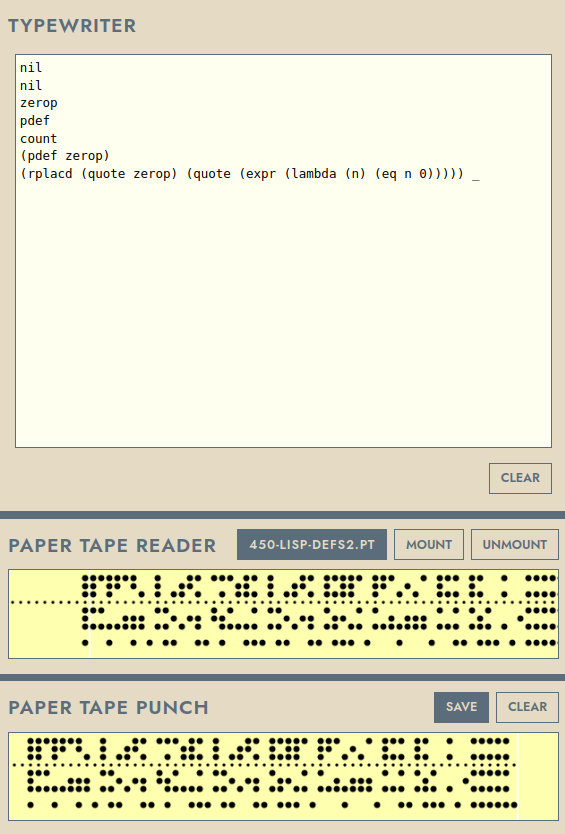
Contents of Lisp-Defs Paper Tape:
(rplacd (quote zerop) (quote (expr (lambda (n) (eq n 0)))))
(rplcd(quote pdf)(quote(fexpr(lambda(xa)(list(quote r placd) (list(quote quot)(car x)) (list(quote quot)(cdr(ca rx))))))))
(rplacd (quote count) (quote (expr (lambda (n) (prog (u) (setq un) (cond ((void u) (return nil))) (print u) (setq u (plus u (void 1))) (go one))))))
paper tape output
(print(cdr(quote tt))) shows the body of the program, but it doesn’t output the function definition! In other words, (rplacd (quote tt) (quote
Has not been printed. But you want to save the actual program definition on paper tape, so you can load it next time, punching (print (cdr (quote tt))) is not enough.
The solution function is the PDF that we loaded from the lisp-pdf tape.
- Turn on sense switch 3 to send output to the punch instead of the typewriter
- Type
(pdef tt)End with the trailing space character as usual, and you will see your function exit the tape. - Turn off Sense Switch 3 to return to typewriter output, and save the paper tape for future use.
Concluding remarks…
Of course, the PDP-1 uses core memory, and core memory is non-volatile. So if you turn off the P(i)DP-1, the next time you turn the power on, everything will still be in memory. There is no need to bring Lisp Agin with paper tape. Simply set the address switch to 4 and press START, then continue.
Footnote: A more detailed lispFunctions file is https://bitsavers.org/bits/DEC/pdp1/papertapeImages/20031216/lisp/lispFunctions.bin. Not tested yet, many useful functions.
Please see the PDP-1 Lisp manual (link) for this. By setting the lower top address to Lisp, there is room at the top for DDT to live. And you can switch from Lisp to DDT using the front panel START switch.
We’ve created some .md text files that you can paste into ChatGPT, Cloud Code, or any other AI, tell the AI to learn about PDP-1 Lisp and become your programming partner. try this! This gives you a very smart side-kick, even if it’s not perfect. Simply paste one or more .md files into the AI, let it process the information, then start asking questions or giving tasks.
- PDP1.md: The text you want to paste into your AI as the base PDP-1 specification.
- lisp.md: Teach AI about PDP-1 Lisp
- lisp1_5.md: Teach AI about Lisp 1.5 Programmer’s Manual
<a href