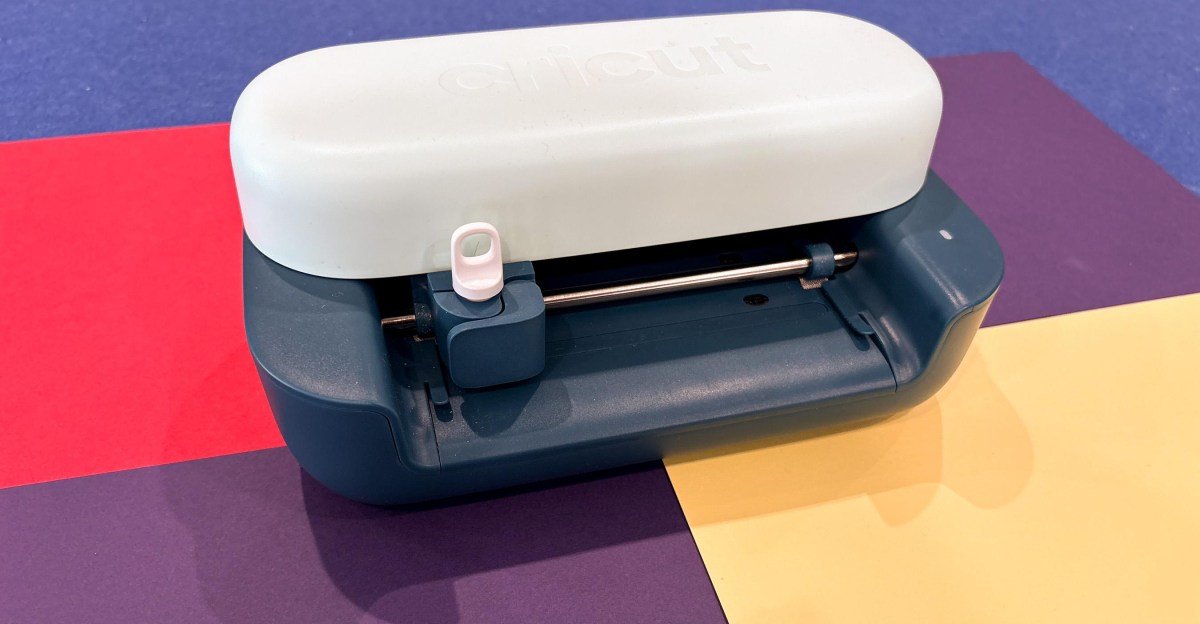
I’ve always been skeptical of products that claim to help you live a more creative life. But recently one won me over. I spent three weeks with the Cricut Joy 2, a smart cutting and drawing machine that made it easy for me to get back into making stickers, cards, bookmarks, and more.
The little $99 gadget isn’t perfect, but its capabilities and app-provided templates were exactly what I was looking for. Caregiving, self-criticism, and mental health struggles have made it hard to tinker and doodle like before, and yet Joy 2 worked with me. This makes for a quick win when you’re in the mood to create.

I’ve been testing the Cricut Joy 2 and Ultimate Plus bundle, which normally costs $229 and comes with a number of extra features, including smart vinyl and iron-on sheets as well as tools like a fine-point blade. It didn’t take much time to get started. I connected the machine, installed Cricut’s Design Space software on my laptop (also available on iOS and Android), and ran my first test cut in less than 30 minutes. Watching the machine cut that first design made me clap with excitement.
That part was easy, but the app onboarding needed some work. For something marketed as beginner-friendly, it’s not obvious what to do next or how to fully take advantage of the hardware. None of this is difficult – figuring out placement on the mat or aligning the materials correctly – but none of it is at all obvious, especially if you’re new to these concepts. Early on, I tried unsuccessfully to print something from scratch and became frustrated after wasting some material.


Design Space’s interface is partly to blame. It hides helpful tutorials and project checklists at the bottom of its landing page, and visual learners should know that there are plenty of written instructions. This is odd, given that Cricut Online offers a series of clear, digestible YouTube tutorials that seem perfect for the app.
To Cricut’s credit, it does offer a free 30-day trial of Cricut Access, after which it costs $9.99 per month. It includes many templates, tips, and guided projects created by Cricut as well as other users who share their designs in the app’s community library. This is useful if you appreciate some structure with your creative activities. More importantly, it teaches you how to use the materials and tools included in the Joy 2. That’s when the real fun started. Projects came together more quickly, and I once again felt the satisfaction of seeing a design go from screen to finished product in minutes.

Simple projects are where the Joy 2 works best, but it can also handle some more complex projects if you want to step up. For example, multicolored designs have to be cut into separate layers and assembled by hand, which takes time and attention. This isn’t necessarily a drawback, but more of a thing you should keep in mind before starting new projects.

If you’re trying to create stickers or other printed designs, like iron-on transfers for shirts, Cricut’s “Print then Cut” feature comes in handy. It lets you print a full-color design with the inkjet or laser printer you already have, then cut it out precisely with the Joy 2. I was happy with the results, and the process is simple: The Design Space app adds cut lines around your uploaded design for the machine to follow. You then feed the printed sheet into the Joy 2, and voila! It scans and cuts.
Technically, the Joy 2 can handle larger projects, like larger wall decals and full-shirt graphics, but the machine can only cut 4 to 4.5 inches at a time. You can split the design into multiple sections, cut out each piece manually, then align and join them by hand. Again, if you imagine you’ll want to create larger designs often, I suggest purchasing the $199 Cricut Explore 5. The $349 Cricut Maker 4, meanwhile, can handle thicker materials like fabric or leather, and can engrave, deboss, or perforate the material.

While my idea of how a “beginner-friendly” cutting machine should be used for users differs from the Cricut, the Joy 2 is a fun, relatively inexpensive gadget that’s easy to recommend. I’m not going to be opening an Etsy store again any time soon, but for the first time in a while, I want to keep creating.
<a href