None of this is actually true though. Writing a driver for a USB device is actually not much more difficult than writing an application that uses Sockets.
This post aims to be a high level introduction to using USB for people who may not have worked with Hardware too much yet and just want to use the technology. There are amazing resources out there such as USB in a NutShell that go into a lot of detail about how USB precisely works (check them out if you want more information), they are however not really approachable for somebody who has never worked with USB before and doesn’t have a certain background in Hardware. You don’t need to be an Embedded Systems Engineer to use USB the same way you don’t need to be a Network Specialist to use Sockets and the Internet.
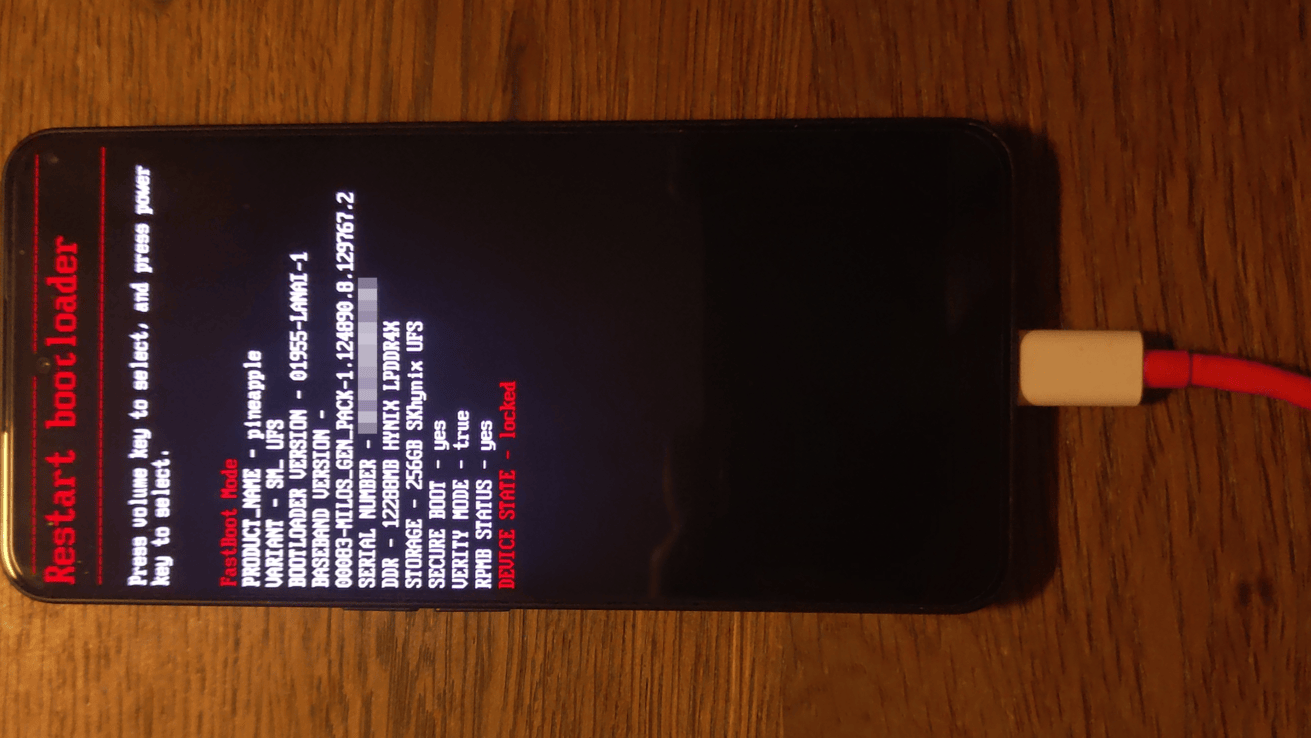
The device we’ll be using an Android phone in Bootloader mode. The reason for this is that
- It’s a device you can easily get your hands on
- The protocol it uses is well documented and incredibly simple
- Drivers for it are generally not pre-installed on your system so the OS will not interfere with our experiments
Getting the phone into Bootloader mode is different for every device, but usually involves holding down a combination of buttons while the phone is starting up. In my case it’s holding the volume down button while powering on the phone
Enumeration refers to the process of the host asking the device for information about itself. This happens automatically when you plug in the device and it’s where the OS normally decides which driver to load for the device. For most standard devices, the OS will look at the USB Device Class and loads a driver that supports that class. For vendor specific devices, you generally install a driver made by the manufacturer which will look at the VID (Vendor ID) and PID (Product ID) instead to detect whether or not it should handle the device.
Basic Information
Even without a driver, plugging the phone into your computer will still make it get recognized as a USB device. That’s because the USB specification defines a standard way for devices to identify themselves to the host, more on how that exactly works in a bit though.
On Linux, we can use the handy lsusb tool to see what the device identified itself as:
Bus 008 Device 014: ID 18d1:4ee0 Google Inc. Nexus/Pixel Device (fastboot)Bus and Device are just identifiers for the physical USB port the device is plugged into. They will most likely differ on your system since they depend on which port you plugged the device into.
ID is the most interesting part here. The first part 18d1 is the Vendor ID (VID) and the second part 4ee0 is the Product ID (PID). These are identifiers that the device sends to the host to identify itself. The VID is assigned by the USB-IF to companies that pay them a lot of money, in this case Google, and the PID is assigned by the company to a specific product, in this case the Nexus/Pixel Bootloader.
Class and Driver Information
Using the lsusb -t command we can also see the device’s USB class and what driver is currently handling it:
/: Bus 008.Port 001: Dev 001, Class=root_hub, Driver=xhci_hcd/1p, 480M |__ Port 001: Dev 002, If 0, Class=Hub, Driver=hub/4p, 480M
|__ Port 003: Dev 003, If 0, Class=Hub, Driver=hub/4p, 480M
|__ Port 002: Dev 014, If 0, Class=Vendor Specific Class, Driver=[none], 480M
This shows the entire tree of USB devices connected to the system. The bottom most one in this part of the tree is our device (Bus 008, Device 014 as reported in the previous command).
The Class=Vendor Specific Class part specifies that the device does not use any of the standard USB classes (e.g HID, Mass Storage or Audio) but instead uses a custom protocol defined by the manufacturer.
The Driver=[none] part simply tells us that the OS didn’t load a driver for the device which is good for us since we want to write our own.
Note for Windows
If you’re on Windows, you won’t have lsusb but you can still find most of this information using the Device Manager or tools like USB Device Tree Viewer
We will also go after the VID and PID since they are the only real identifying information we have. The Device Class is not very useful for it here since it’s just Vendor Specific Class which any manufacturer can use for any device. Instead of doing all of this in the Kernel though, we can write a Userspace application that does the same thing. This is much easier to write and debug (and is arguably the correct place for drivers to live anyway but that’s a different topic). To do this, we can use the libusb library which provides a simple API for communicating with USB devices from Userspace. It achieves this by providing a generic driver that can be loaded for any device and then provides a way for Userspace applications to claim the device and talk to it directly.
The same thing we just did manually can also be done in software though. The following program initializes libusb, registers a hotplug event handler for devices matching the 18d1:4ee0 VendorId / ProductId combination and then waits for that device to be plugged into the host.
#include <libusb-1.0/libusb.h> libusb_hotplug_event event,
std::println("Device plugged in!\n");
// Create a context so we can interact with the libusb driver
libusb_context *context = nullptr;
// Register a hotplug event handler to wait for our device to be plugged in
libusb_hotplug_callback_handle hotplug_callback_handle;
libusb_hotplug_register_callback(
LIBUSB_HOTPLUG_EVENT_DEVICE_ARRIVED, // Device plugged in event
LIBUSB_HOTPLUG_ENUMERATE, // Fire event for already plugged in devices
0x18d1, 0x4ee0, // The VID and PID we found previously
LIBUSB_HOTPLUG_MATCH_ANY, // Match any USB Class
hotplug_callback, nullptr, // The callback to call
// Handle the libusb events
if (libusb_handle_events(context) < 0)
libusb_hotplug_deregister_callback(context, hotplug_callback_handle);
If you compile and run this, plugging in the device should result in the following output:
Congrats! You have a program now that can detect your device without ever having to touch any Kernel code at all.
Note for Windows
On Linux, all of this will generally just work. If for any reason a driver anyway being loaded, you can forcefully detach it using libusb_detach_kernel_driver().
On Windows, things may look different. If you’re lucky, the device has a Microsoft OS Descriptor that tells Windows to load the Winusb.sys driver for your device. In that case, libusb can talk to it directly. However if no driver was loaded (the device shows up in the Device Manager with a little ⚠️ icon), you might need to use Zadig to force-replace the driver of the device with Winusb.sys or another supported driver. More information can be found here: libusb Wiki
Next step, getting any answer from the device. The easiest way to do that for now is by using the standardized Control endpoint. This endpoint is always on ID 0x00 and has a standardized protocol.
This endpoint is also what the OS previously used to identify the device and get its VID:PID.
Requesting our first data
The way we use this endpoint is with yet another libusb function that’s made specifically to send requests to that endpoint. So we can extend our hotplug event handler using the following code:
// Open the device so we can communicate with itlibusb_device_handle *handle = nullptr;
libusb_open(device, &handle);
std::vector<std::uint8_t> data(0xFF);
const auto result = libusb_control_transfer(
uint8_t(LIBUSB_ENDPOINT_IN) | // Ask for data from the device...
LIBUSB_RECIPIENT_DEVICE | // about the device as a whole...
LIBUSB_REQUEST_TYPE_STANDARD, // using a standard request.
LIBUSB_REQUEST_GET_STATUS, // Send a GET_STATUS request
0x00, // wValue value of 0x00
0x00, // wIndex value of 0x00
data.data(), data.size(), // Buffer to read the data into
// Print the data returned by the device if there was no error
print_bytes(std::span(data).subspan(0, result));
This code will now send a GET_STATUS request to the device as soon as it’s plugged in and prints out the data it sends back to the console.
Addr 00 01 02 03 04 05 06 07 08 09 0A 0B 0C 0D 0E 0FThose bytes came from the device itself! Decoding them using the specification tells us that the first byte tells us whether or not the device is Self-Powered (1 means it is which makes sense, the device has a battery) and the second byte means it does not support Remote Wakeup (meaning it cannot wake up the host).
There are a few more standardized request types (and some devices even add their own for simple things!) but the main one we (and the OS too) are interested in is the GET_DESCRIPTOR request.
Requesting a Descriptor
Descriptors are binary structures that are generally hardcoded into the firmware of a USB device. They are what tells the host exactly what the device is, what it’s capable of and what driver it would like the OS to load. So when you plug in a device, the host simply sends multiple GET_DESCRIPTOR requests to the standardized Control Endpoint at ID 0x00 to get back a struct that gives it all the information it needs for enumeration. And the cool thing is, we can do that too!
Instead of a GET_STATUS request, we now send a GET_DESCRIPTOR request:
const auto result = libusb_control_transfer( uint8_t(LIBUSB_ENDPOINT_IN) | // Ask for data from the device...
LIBUSB_RECIPIENT_DEVICE | // about the device as a whole...
LIBUSB_REQUEST_TYPE_STANDARD, // using a standard request.
LIBUSB_REQUEST_GET_DESCRIPTOR, // Send a GET_DESCRIPTOR request
(LIBUSB_DT_DEVICE << 8) | 0, // Request the 0th Device Descriptor
0x00, // Language ID, can be ignored here
data.data(), data.size(), // Buffer to read the data into
This now instead returns the following data:
Addr 00 01 02 03 04 05 06 07 08 09 0A 0B 0C 0D 0E 0F0000: 12 01 00 02 00 00 00 40 D1 18 E0 4E 99 99 01 02
Now to decode this data, we need to look at the USB specification on Chapter 9.6.1 Device. There we can find that the format looks as follows:
struct DeviceDescriptor {Throwing the data into ImHex and giving its Pattern Language this structure definition yields the following result:

And there we have it! idVendor and idProduct correspond to the values we found previously using lsusb.
There’s more than just the device descriptor though. There’s also Configuration, Interface, Endpoint, String and a couple of other descriptors. These can all be read using the same GET_DESCRIPTOR request on the control endpoint. We could still do this all by hand but luckily for us, lsusb has an option that can do that for us already!
Bus 001 Device 012: ID 18d1:4ee0 Google Inc. Nexus/Pixel Device (fastboot)Negotiated speed: High Speed (480Mbps)
bDeviceSubClass 0 [unknown]
idVendor 0x18d1 Google Inc.
idProduct 0x4ee0 Nexus/Pixel Device (fastboot)
iManufacturer 1 Synaptics
iProduct 2 USB download gadget
Configuration Descriptor:
iConfiguration 2 USB download gadget
bInterfaceClass 255 Vendor Specific Class
bInterfaceSubClass 66 [unknown]
iInterface 3 Android Fastboot
bEndpointAddress 0x81 EP 1 IN
wMaxPacketSize 0x0200 1x 512 bytes
bEndpointAddress 0x02 EP 2 OUT
wMaxPacketSize 0x0200 1x 512 bytes
Device Qualifier (for other device speed):
bDeviceSubClass 0 [unknown]
This output shows us a few more of the descriptors the device has. Specifically, it has a single Configuration Descriptor that contains a Interface Descriptor for the Android Fastboot interface. And that interface now contains two Endpoints. This is where the device tells the host about all the other endpoints, besides the Control endpoint, and these will be the ones we’ll be using in the next step to actually finally send data to the device’s Fastboot interface!
Let’s talk a bit more about endpoints first though. We already learned about the Control endpoint on address 0x00.
Looking at the descriptors above, that control descriptor is not there though. Instead, there’s two others with different types.
Control Transfer Type
There’s exactly one per device and it’s always fixed on Endpoint Address 0x00. It’s what is used do initial configuration and request information about the device.
The main purpose of the Control endpoint is to solve the chicken-and-egg problem where you couldn’t communicate with a device without knowing its endpoints but to know its endpoints you’d need to communicate with it. That’s also why it doesn’t even appear in the descriptors. It’s not part of any interface but the device itself. And we know about its existence thanks to the spec, without it having to be advertised.
It’s made for setting simple configuration values or requesting small amounts of data. The function in libusb doesn’t even allow you to set the endpoint address to make a control request to because there’s only ever one control endpoint and it’s always on address 0x00
Bulk Transfer Type
Bulk Endpoints are what’s used when you want to transfer larger amounts of data. They’re used when you have large amounts of non-time-sensitive data that you just want to send over the wire.
This is what’s used for things like the Mass Storage Class, CDC-ACM (Serial Port over USB) and RNDIS (Ethernet over USB).
One detail: Data sent over Bulk endpoints is high bandwidth but low priority. This means, Bulk data will always just fill up the remaining bandwidth. Any Interrupt and Isochronous transfers (further detail below) have a higher priority so if you’re sending both Bulk and Isochronous data over the same connection, the bandwidth of the Bulk transmission will be lowered until the Isochronous one can transmit its data in the requested timeframe.
Interrupt Transfer Type
Interrupt Endpoints are the opposite of Bulk Endpoints. They allow you to send small amounts of data with very low latency. For example Keyboards and Mice use this transfer type under the HID Class to poll for button presses 1000+ times per second. If no button was pressed, the transfer fails immediately without sending back a full failure message (only a NAK), only when something actually changed you’ll get a description back of what happened.
The important fact here is, even though these are called interrupt endpoints, there’s no interrupts happening. The Device still does not talk to the Host without being asked. The Host just polls so frequently that it acts as if it’s an interrupt.
The functions in libusb that handle interrupt transfers also abstract this behaviour away further. You can start an interrupt transfer and the function will block until the device sends back a full response.
Isochronous Transfer Type
Isochronous Endpoints are somewhat special. They’re used for bigger amounts of data that is really timing critical. They’re mainly used for streaming interfaces such as Audio or Video where any latency or delay will be immediately noticeable through stuttering or desyncs. In libusb, these work asynchronously. You can setup multiple transfers at once and they will be queued and you’ll get back an event once data has arrived so you can process it and queue further requests.
This type is generally not used very often outside of the Audio and Video classes.
In / Out Endpoints
Besides the Transfer Type, endpoints also have a direction. Keep in mind, USB is a full master-slave oriented interface. The Host is the only one ever making any requests and the Device will never answer unless addressed by the Host. This means, the device cannot actually send any data directly to the Host. Instead the Host needs to ask the Device to please send the data over.
This is what the direction is for.
INendpoints are for when the Host wants to receive some data. It makes a request on anINendpoint and waits for the device to respond back with the data.OUTendpoints are for when the Host wants to transmit some data. It makes a request on anOUTendpoint and then immediately transfers the data it wants to send over. The Device in this case only acknowledges (ACK) that it received the data but won’t send any additional data back.
IN: I want to get data inOUT: I want to send data out
Contrary to the transfer type, the direction is encoded in the endpoint address instead. If the topmost bit (MSB) is set to 1, it’s an IN endpoint, if it’s set to 0 it’s an OUT endpoint. (If you’re into Hardware, you might recognize this same concept from the I2C interface.)
That means two things:
- You can have a maximum of custom endpoints available at once
- because we have 7 bits available for addresses
- because we always have the control endpoint that’s on the fixed address
0x00.
- Endpoints are entirely unidirectional. Either you’re using an endpoint to request data or to transmit data, it cannot do both at once
- That’s also the reason why our Fastboot interface has two Bulk endpoints: one is dedicated to listening to requests the Host sends over and the other one is for responding to those same requests
Now that we have all this information about USB, let’s look into the Fastboot protocol. The best documentation for this is both the u-boot Source Code and as its Documentation.
According to the documentation, the protocol really is incredibly simple. The Host sends a string command and the device responds with a 4 character status code followed by some data.
Host: "getvar:version" request version variableClient: "OKAY0.4" return version "0.4"
Host: "getvar:nonexistant" request some undefined variable
Client: "OKAY" return value ""
Let’s update our code to do just that then:
// Open the device so we can communicate with itlibusb_device_handle *handle = nullptr;
libusb_open(device, &handle);
// Claim the interface to let libusb know which interface
libusb_claim_interface(handle, 0);
// Setup a 64 byte buffer for our request and response
// The documentation specifies 64 bytes for full-speed and
// 512 bytes for high-speed. Since this is a full-speed device,
std::vector<uint8_t> bytes(64);
// Copy the command "getvar:version"
// to the start of the buffer
// Do a Bulk transfer of that data on the OUT Endpoint 0x02
int num_bytes_transferred = 0;
LIBUSB_ENDPOINT_OUT | 0x02, // Endpoint OUT 0x02
bytes.data(), bytes.size(), // Data to send
&num_bytes_transferred, // Number of bytes sent
// Print the transmitted data data
std::println("Response: {}",
reinterpret_cast<const char *>(bytes.data()),
std::ranges::fill(bytes, 0x00);
num_bytes_transferred = 0;
// Do a Bulk transfer on the IN Endpoint 0x01
LIBUSB_ENDPOINT_IN | 0x01, // Endpoint IN 0x81
bytes.data(), bytes.size(), // Buffer to receive into
&num_bytes_transferred, // Number of bytes received
// Print the returned characters
std::println("Response: {}",
reinterpret_cast<const char *>(bytes.data()),
// Release the interface again
libusb_release_interface(handle, 0);
// Close the device handle
Plugging the device in now, prints the following message to the terminal:
That seems to match the documentation!
First 4 bytes are OKAY, specifying that the request was executed successfully
The rest of the data after that is 0.4 which corresponds to the implemented Fastboot Version in the Documentation: v0.4
And that’s it! You successfully made your first USB driver from scratch without ever touching the Kernel.
All these same principles apply to all USB drivers out there. The underlying protocol may be significantly more complex than the fastboot protocol (I was pulling my hair out before over the atrocity that the MTP protocol is) but everything around it stays identical. Not much more complex than TCP over sockets, is it? 🙂
Post: USB for Software Developers
<a href