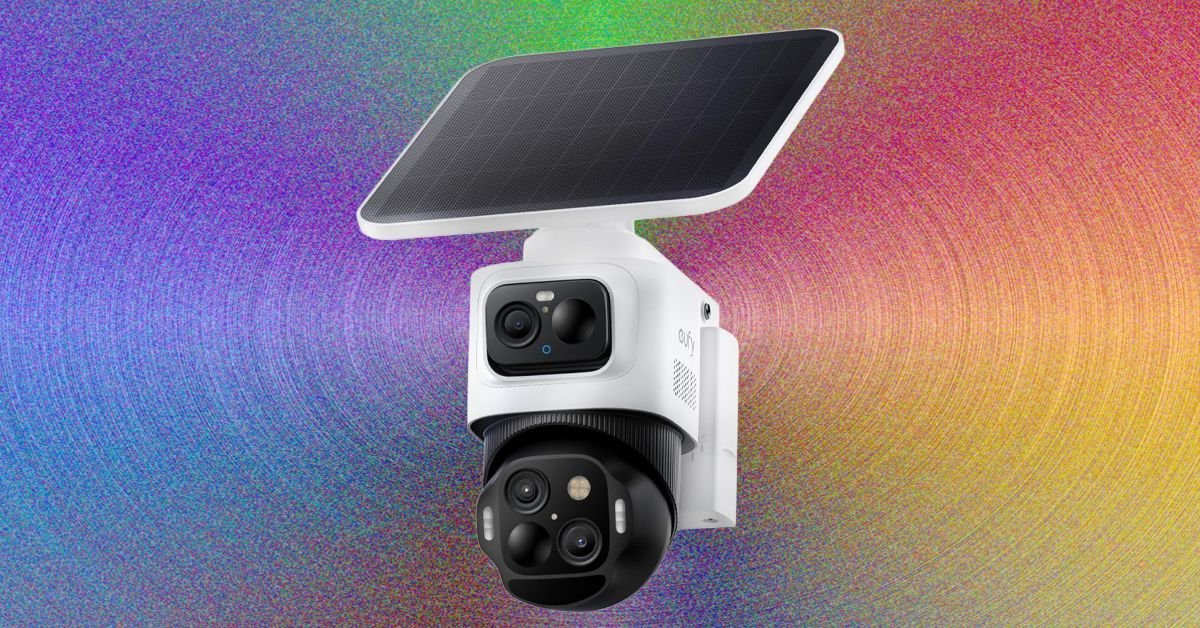
local hub: Manufacturers like Eufy and TP-Link offer smart hubs that connect wirelessly to their security cameras and offer expandable storage. Sometimes these local hubs allow for more local AI processing (Eufy’s hub enables facial recognition). They can sometimes also enhance wireless signals and stability for cameras. These hubs often need to be plugged directly into your router via an Ethernet cable.
micro SD card: Plugging a microSD card into the camera is a quick and simple way to record locally, but if an intruder steals the camera, your footage goes with him. Sometimes, camera manufacturers offer indoor hubs that are expandable via microSD card.
Network Attached Storage (NAS):If you have a NAS server, you can probably configure it to store your security camera video. These devices contain hard drives and are expandable, potentially offering huge amounts of storage.
The best USB flash drives and external hard drives can be used to extend or offload footage from some of the above.
cloud vs local
I have a guide on cloud vs local security camera footage that covers the basic pros and cons in more depth, but in summary:
Cloud storage means your video is backed up online so no intruder can access it, it’s usually faster to access or stream when you’re away from home, and it doesn’t require any additional storage hardware. The downside is that you pay a monthly fee, the video doesn’t upload if your Wi-Fi fails or glitches, and you’re relying on the service provider, who may share it or use it in ways you don’t want them to (data breaches are also common).
Local storage is a one-time cost, doesn’t depend on Wi-Fi, and makes it very difficult for anyone other than you to access the footage. But, there is a risk that someone may steal the physical hardware storing your footage, or the hardware may fail, and accessing and streaming video may be slow when you are away from home.
For maximum security, even with a local system, you may want to consider cloud backup. You can reduce the risk of your footage being exposed by choosing a cloud service that is end-to-end encrypted, such as Apple’s HomeKit Secure Video.
Protecting your privacy
Access to your security camera feeds and recorded video must be end-to-end encrypted, and you should always use two-factor authentication to protect account access. With end-to-end encryption, only your authorized devices can decrypt your videos. With 2FA, when you try to log in on a new device you’ll be sent a passcode to a trusted number, email, or device, so your login and password alone aren’t enough to gain access. Sadly, these features are not always turned on by default.
- Eufy cameras offer end-to-end encryption, but you’ll need to tap the menu at the top left of the app and select settings, Security, video encryption, advanced encryption. You can make sure 2FA is on by tapping Your name at the top of the menu and two-factor authentication.
- TP-Link Tapo cameras lack end-to-end encryption, but you can set up 2FA for your account with Tap Me tab, view account, login security. To encrypt footage on a microSD card, go to your device Settings and select storage and recording, local storagetap more sd card encryption.
- Aqara offers end-to-end encryption by default on your locally stored videos. Tap for 2FA profile bottom right, settings, Accounts and Securityand make sure two-factor authentication Has been started.
<a href