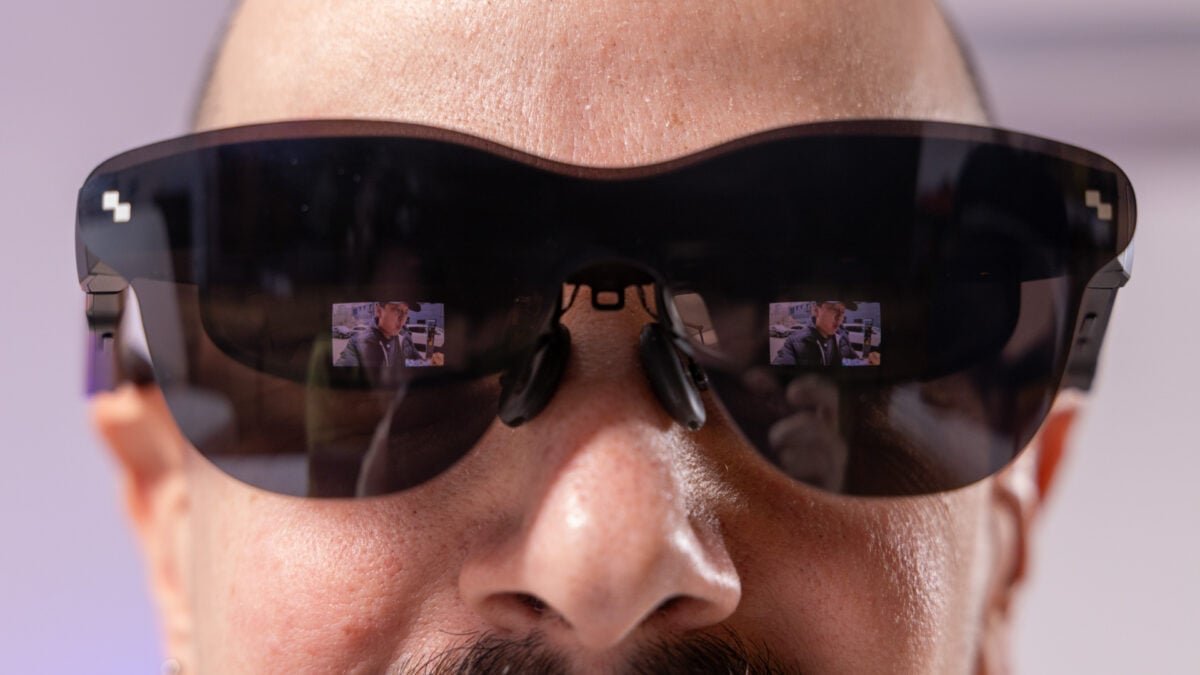
One company (not Xreal) that thinks you might want or need a computer monitor in a glasses-like form factor is TCL’s RayNeo, and its most recent offering in that vein is the RayNeo Air 4 Pro—a pair of video glasses that touts itself as the first pair ever with HDR10. The selling point here is that the $299 RayNeo Air 4 Pro are supposed to be light, bright, sharp, and capable of sitting in for a monitor for gaming, watching content, or even just everyday computing.
The fact of the matter is that most people are not going to want or need video glasses that hit any of those metrics—they’re fine with the already overwhelming array of screens we have at our disposal. But if you are a video glasses kind of person, I’m here to tell you that RayNeo’s Air 4 Pro might not be a bad pick.
RayNeo Air 4 Pro
The RayNeo Air 4 Pro are video glasses with a great display that could improve on the fit a bit.
- The display and HDR10 are excellent
- Sound is much better than expected
- Ridiculously easy to use
- The fit isn’t ideal for me
- Some features fall flat
- A bit of blurriness here and there
High marks for high definition

The first thing you should know is that I’m typing this with the RayNeo Air 4 Pro on my face right now. Is it the most natural experience in the world? No. It is not. But it is surprisingly functional.
Video glasses are somehow simultaneously more niche and a lot more practical than smart glasses in some ways, since, unlike smart glasses, which have limited apps, power, and functionality, you can actually use video glasses to get stuff done. They do beg the question, though: why on earth would I need this? I can’t answer that for you, but most people usually arrive at the conclusion that they want a big virtual screen that isn’t out in the open. Maybe they’re gaming on a plane or in a hotel, or they want to watch movies on the bus or something. Who’s to say? What I can say is that the RayNeo Air 4 Pro are not a bad way to do those things.
See RayNeo Air 4 Pro at Amazon
The dual micro OLED display has 1,200 nits of peak brightness and a refresh rate of 120Hz, and RayNeo says it’s capable of projecting about a 201-inch screen onto your eyeballs at a resolution of 1,920 x 1,080 per eye. In practice, that translates to a surprisingly bright screen that is sharper than you’d expect. Just using the RayNeo Air 4 Pro like a computer monitor for web browsing and work, it was more than sufficient, and equally so for gaming. The screen feels expansive. I don’t know about 200 inches expansive, but it’s big—so big that I find myself wanting to downsize it at times. But if you’re looking for a truly big-screen video glasses experience, you won’t be disappointed here.
I played Fortnite on my MacBook Air (via the cloud, unfortunately), since I have the gaming sensibilities of a child, and was really pleased with the results. If I did miss a beat, it was the cloud’s fault and not the fault of the RayNeo Air 4 Pro. Use cases like this is where 120Hz really comes in handy, since you’re going to want a high refresh rate for smooth gameplay. If you don’t need that high of a refresh rate, you can also set the video glasses to 60Hz, but I personally never felt the need to do that. I also played Cyberpunk 2077 on a Lenovo Legion Go S and was pretty pleased with the results.

You should know that these video glasses do not have their own independent battery. That means they rely on whatever device you’re plugging them into for power. As you might imagine, the battery drain is real. After a 10-minute YouTube video streaming at 1080p and full brightness with 80% volume in the video glasses, my iPhone 17 went from 33% battery to 29% battery. I had AI HDR activated, and the display was set to 120Hz. If you extrapolate that out, we’re looking at 4% battery drain every 10 minutes, so a two-hour movie might drain nearly half my phone battery. That’s not awful, but it’s not nothing, either, especially if your phone isn’t as new as mine.
If there’s one complaint that I have, it’s that the edges of the virtual display can look a little bit blurry at times, but I suspect that’s for reasons that I’ll get into later. Generally speaking, I find the RayNeo Air 4 Pro to be crisp and bright across the spectrum of things you might do, including working, playing games, and watching movies or other content, and for $299, which is $150 less than the Xreal 1S, these video glasses feel like a solid option based on the display alone.

Another bright spot outside of the screen is audio. The Bang & Olufsen speakers (there are four in total) do a great job of making audio feel full and immersive despite the fact that the RayNeo Air 4 Pro are relatively small. Having tested quite a few pairs of smart glasses by this point, audio can be very hit or miss in the glasses form factor, so I was happy to see that RayNeo seems to have nailed that side of things here—especially because you’re going to want to do audio-centric stuff with the video glasses, like watching movies or gaming.
If you’re used to a high level of audio performance from your smart glasses, like the quality you’d get from Ray-Ban Meta AI glasses, you’ll be just as pleased with the RayNeo Air 4 Pro. You’re probably not going to sit around all day listening to music in these video glasses, but you’re not going to want to throw them in the trash for having tinny-sounding, half-assed audio.
The Air 4 Pro are mostly breezy
What’s extra great about the RayNeo Air 4 Pro is that they work with pretty much any device that has a USB-C with DisplayPort, so using the video glasses feels ridiculously easy. On my iPhone 17, I just connected the RayNeo Air 4 Pro in with the included USB-C cable, and the next thing I knew, I was looking at my phone screen in the video glasses’ display.
While you’re not going to want to put these video glasses on just to doomscroll unless you’re a real sicko, it’s nice to have such easy phone connectivity for when you want to watch a movie or put on your favorite YouTube channel. Alternatively, if you had a controller, you could game from your phone on a virtual screen, which might be handy if you’re traveling. Likewise, connecting to a handheld gaming PC is just as easy. I connected the RayNeo Air 4 Pro into Lenovo’s Legion Go S and played Cyberpunk 2077 for a bit, and it couldn’t have been more seamless. Sadly, it won’t work with the Switch 2; Nintendo’s handheld doesn’t support video glasses with a special adapter. Viture makes a pair of video glasses that do work with the Switch 2, but it’s a cumbersome setup.

One thing that isn’t as plug-and-play is audio. Though most devices pick up on the display almost immediately without having to adjust anything in settings, you may have to play around with audio output settings. I also had some choppiness with audio when connecting to my M1 MacBook Air, but that could be a problem with my machine because when I connected the RayNeo Air 4 Pro to a M2 MacBook Pro, that issue cleared up.
If there’s one thing that I can fault the RayNeo Air 4 Pro for, it’s the fit. While everyone’s face is different, I’m firmly in the big-nose club, which made finding the right spot on my face difficult. Wearing the video glasses further down the bridge of my nose was the ideal placement as far as screen sharpness, but it wasn’t ideal for comfort. If you, like me, have a big nose, please do yourself a favor and take advantage of the included large-sized nose pads that come in the box.

To change the standard medium-sized nose pads that come with the video glasses, just pull the metal frame toward you with the front facing away, and they should slide right off. From there, you’ll be free to just slide the metal tab inside the empty slot, and it should snap right in.
While the large size nose pads definitely helped, it still felt just a little bit unnatural wearing these video glasses, especially for long periods, and while you can adjust the glasses’ arms by snapping them in three different positions (middle, up, or down), it wasn’t enough to make them feel at home on my face. It’s probably also worth noting here that, though the nose pads are adjustable (you can pinch them in or widen them), they feel a bit cheap to me. The plastic is your standard shiny stuff, and they don’t feel particularly ergonomic or forgiving.

If it weren’t for the nose discomfort, the RayNeo Air 4 Pro would feel just fine on my face. They weigh 76g, which isn’t titanic by any means, and the weight is even distributed. While they don’t feel particularly premium, they’re at least fairly lightweight, if maybe a little big and dorky. I wouldn’t plan on wearing these in public without getting clocked as a “glasshole” of some kind. Buttons are also just fine, and limited to a menu button on the left arm, which is behind the volume rocker, as well as a brightness rocker under the right arm.
For me, though, the less-than-ideal fit on the nose made the RayNeo Air 4 Pro a little uncomfortable overall, and (I suspect) also a little blurry at times, especially at the edges of the screen. To make that complaint a little more palpable, you can’t actually adjust the virtual screen size, so you’re locked in to whatever view you can get by adjusting the glasses’ arms or the position of the video glasses on your nose. The blurriness wasn’t deal-breaking since it was mostly around the edges of the screen, but it did make me yearn for a more perfect fit. Maybe you won’t encounter that issue, but if your face is anything like mine, it’s something to keep on your radar.
Everything in 3D
There aren’t a ton of features in the RayNeo Air 4 Pro, but there are enough to tinker around with. In the video glasses’ main menu, which can be activated by pushing the menu button underneath the left arm, you can adjust a few things, including “picture mode,” which is misspelled as “picture mdoe” in my glasses. Here, you’ll get to choose between “standard,” “movie,” and “eye comfort.” While movie mode adjusts the contrast and deepens blacks, eye comfort minimizes blue light. I didn’t notice a huge difference between standard and movie mode, but the eye comfort setting is fairly noticeable.
Additionally, you can choose between resolutions, including SDR, HDR10, and something called AI HDR, which is a feature that’s meant to upscale standard-definition content. I think HDR10 looks great, but I didn’t notice a huge difference when using AI HDR to try to upscale a YouTube video that I had set to play at 480p. It looked slightly more high-res, but not enough for me to be blown away, though maybe you’ll have a better eye for that sort of thing.

Outside of that, you can also set the frame rate and toggle on “color enhancement,” which uses AI to auto-adjust saturation and vibrancy. I tried color enhancement on a few pictures in the camera roll of my phone, and it definitely did its job—everything looked just a little bit more vibrant with the feature on—but it can only be used when you have the video glasses set to SDR, so I’m not sure the feature is really worth it.
Speaking of features that aren’t worth it, there’s also a way to use the RayNeo Air 4 Pro as a secondary display on a Windows machine. To do this, all you have to do is download Mirror Studio and then open the application on your machine with your video glasses connected. The good news is Mirror Studio technically works, you can drag windows onto your video glasses like any other secondary monitor, but the bad news is that—at least for me—everything in the secondary window was incredibly blurry. I had Gizmodo staff writer, Kyle Barr, take a look as well, just to make sure it wasn’t my eyesight, and he too noted the blurriness. Maybe that can be adjusted with software, but for now, I wouldn’t consider the mirroring experience very usable.

One feature you’re going to want to try out is the 2D to 3D conversion, though. To do this, you’ll need the RayNeo AR app, which you can download for free. Once the video glasses are connected to your phone, you can enable 3D mode by pressing the brightness and volume buttons up one time and then tapping “enter XR space” on the RayNeo app will bring you into a new UI. From this space, you can convert photos and videos to 3D or view side-by-side 3D content by using your phone to navigate the UI like a touchpad.
Honestly, the experience is better than I expected. While not all photos or videos will translate well in their conversion from 2D to 3D (pictures and videos with things in the foreground), it jibes well with lots of videos, especially those shot on phones that capture 3D information, like the iPhone. This isn’t a way I’d want to watch video or look at pictures all the time, but it felt pretty novel, and conversions into 3D only take a few moments. Side-by-side content that I viewed on YouTube was also not bad, and isn’t Vision Pro levels of immersion, but is more sophisticated than you’d expect from a pair of video glasses. If anything, 3D content is just another way to relish the excellent display on the RayNeo Air 4 Pro. Xreal’s X1, One, and One Pro video glasses can also convert 2D content to 3D.
Are these the video glasses for you?

RayNeo mostly succeeds in its goal of making sharp, bright video glasses that are easy to use. I love that the RayNeo Air 4 pro are plug-and-play, and the mini OLED displays with HDR10 are bright, crisp, and sharp, just like it should be. Well-balanced audio is the cherry on top. If there’s any hesitation on my part, it’s the fit and comfort, though, but that varies person to person. If you don’t have a big nose like me, you might like using these video glasses, but if you do have a schnoz, it could be a dealbreaker—not just because of comfort, but because it might actually make the RayNeo Air 4 Pro blurrier than they should be.
There’s still a lot to like in the RayNeo Air 4 Pro overall, though, and with a little refinement on software and fit, RayNeo is bringing a lot of value to the video glasses game, especially since they undercut the price of similar glasses made by Xreal by a pretty big margin.
See RayNeo Air 4 Pro at Amazon
<a href