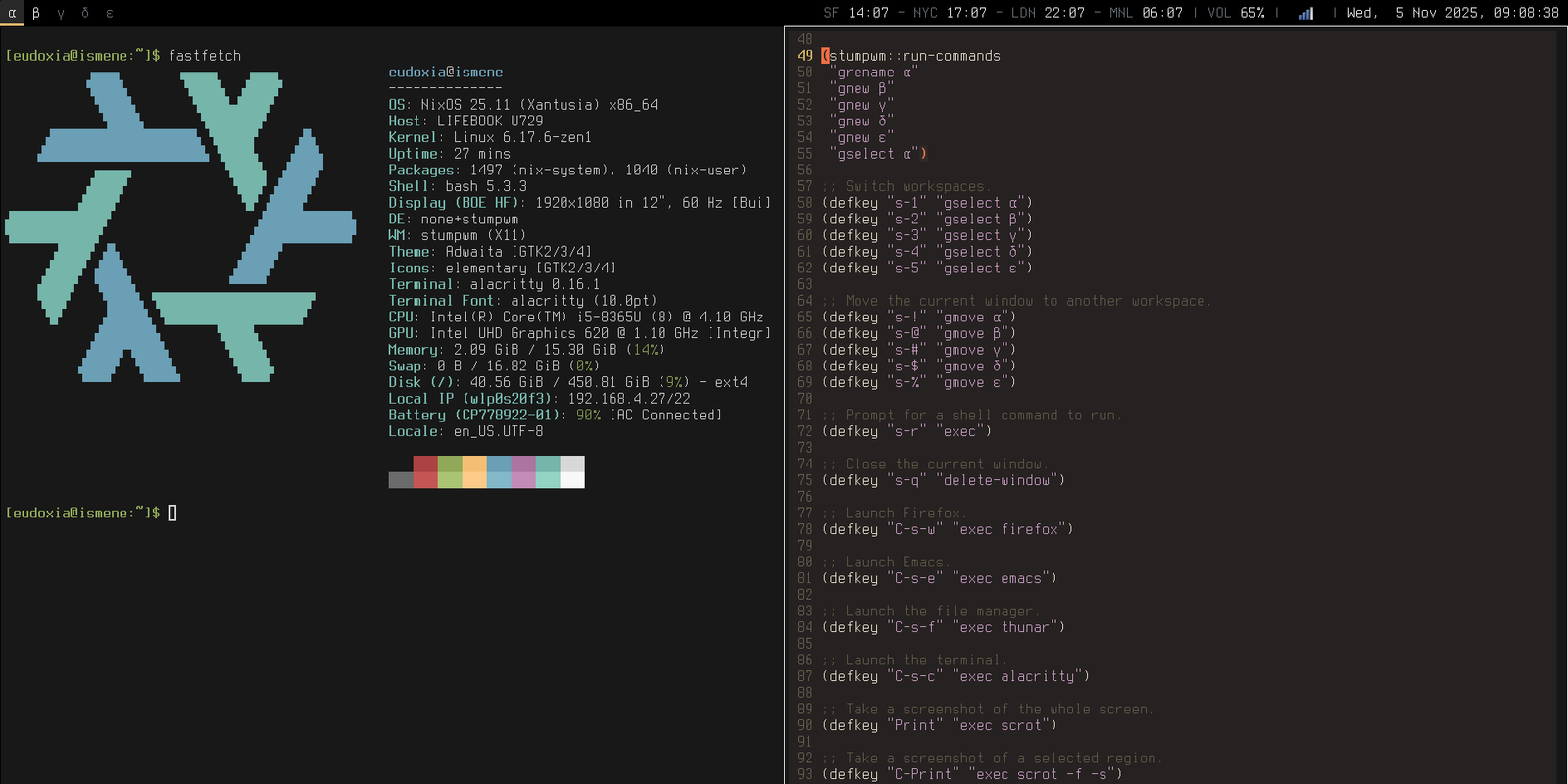
This post describes my experience using Linux on the Fujitsu LifeBook U729. The point is, it’s a delightful laptop, and Linux runs flawlessly, and all the hardware things I need run OOTB. The only difficulty I encountered was disabling Secure Boot, but I figured out how to do it, which I’ll explain below.
- background
- troubleshooting
- secure boot
- spyware
- non problems
- BIOS Notes
- Link
My daily driver was an M2 MacBook Air from early 2024, until earlier this year I broke the screen, and the repair cost about 1000 AUD. Since I used it as a desktop most of the time, it didn’t affect me much. After some hesitation I decided on the M4 Mac Mini. Partly for the faster CPU and more RAM, but partly because I liked the idea of LARPing like it was the 2000s, when computers, and by extension the Internet, were fixed in physical space rather than following everyone else.
Of course this was a terrible idea. I had three work computers – a Linux + Windows desktop, a Mac mini, and a MacBook Air that I could use as a desktop – and none of them were portable. When I went to RustForge 2025 I just brought my phone. If I wanted to travel, even within Sydney, to a demo night or a maths club or something like that, I wouldn’t have a laptop to bring with me.
So I needed a new laptop. And the Tahoe release of macOS was so ugly (see examples 1, 2, 3) it forced me to boot up the old Linux desktop, and start playing with NixOS again. And I fell in love with Linux again: the tinkering, the experimentation, and the freedom it provided.
So, I wanted a Linux laptop. A few years ago I had a ThinkPad. I looked around for old, refurbished workstation laptops, and, suddenly, I came across an eBay seller who was offering a refurbished Fujitsu laptop.
The spec/price ratio was great: 16GB RAM and 512GB SSD, all for 250 AUD. And it was 12 inches and 1.1 kilograms, which I like: laptops should be small and light. But honestly, what got me was the brand. The “Fujitsu laptop” sounds like something out of a William Gibson novel: “Crawling into the avionics bay, Case pulled out a scrapped Fujitsu refurb, and stuck a JTAG port into the flight computer—”. I already use NixOS and a trackball and a mechanical keyboard, so a laptop that’s even more obscure than a ThinkPad is perfect for me. And it was only 250 AUD. So I got this.

My only problem was disabling Secure Boot to install Linux. Otherwise: I like it. It’s small and light, feels solid, the keyboard is nice, all the hardware works with NixOS and battery life is pretty good.
This section describes the problems I encountered.
secure boot
I tried to install Linux the normal way, when I was greeted with this:

Upon going into BIOS, the option to disable Secure Boot was grayed out. I tried random crap: erasing the TPM, disabling the TPM. That didn’t work.
What came in handy:
First, install Windows 11. It came with the laptop. And the installation makes it easy to install Linux: I had to use several strange tricks to avoid creating an account with Microsoft during installation.
Once Windows is installed, go to Windows Update. Under “Advanced options > Optional updates” there should be an option to install a Fujitsu-specific driver. Install them. And for good measure, do a simple Windows update.
There should be a program called DeskUpdate on the desktop. This is Fujitsu BIOS update tool. Run it and follow the instructions: This should update the BIOS (the order seems to be important: first update the Fujitsu firmware via Windows Update, then update the BIOS via DeskUpdate).
Reboot and go into BIOS (F2). You must have a newer BIOS version. In my case, I moved from BIOS 2.17 to 2.31 which was released on 2025-03-28:

You now have the option to disable Secure Boot:

After this, I was able to install NixOS from the live USB:

spyware
The laptop comes with this corporate spyware thing called Absolute Persistence. This is some anti-theft tracking device. Since the LifeBook is typically an enterprise laptop, it makes sense that it comes with this type of thing.
I only noticed this because I was thoroughly searching the BIOS for a way to disable Secure Boot. The good news is that disabling it is pretty straightforward: you simply disable it in the BIOS.

As I understand it, Absolute Persistence requires an agent running in the OS, so disabling BIOS support, in itself, does nothing.
The following functions flawlessly OOTB:
- wifi
- Bluetooth
- Sound (using Pipewire)
- Display brightness control (using BrightnessCtrl)
- Touchscreen (I didn’t realize the screen was actually a touchscreen until I accidentally touched it and saw the mouse move)
- Webcam (not winning any awards on quality, but it works)
Things I haven’t tested:
- microphone
- fingerprint sensor
To enter BIOS: smash F2 Until you hear the beep. There is no need to press and hold
Fn key.
To enter the boot menu: As above but with F12,