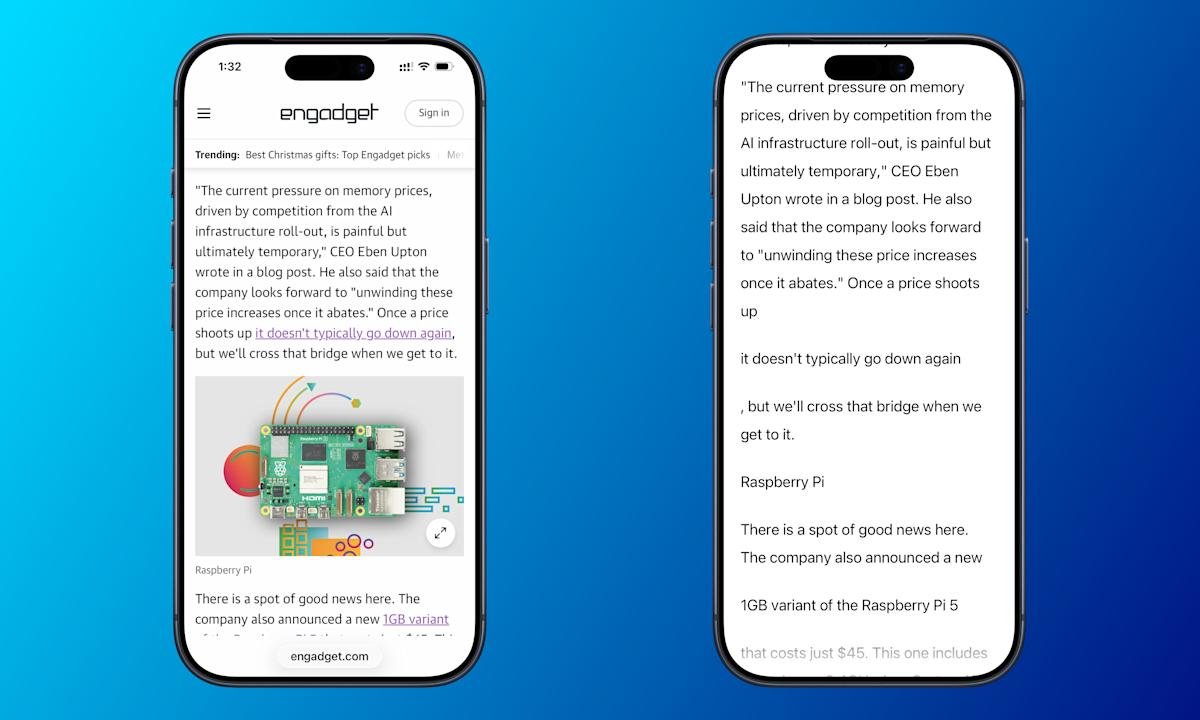
Earlier this year, Apple launched a new tool that makes it easier to read anything on your device’s screen. Designed for people with visual disabilities, Accessibility Reader provides a full-screen view of any on-screen text. (It’s somewhat like Safari’s Reader mode, only for any app.) This feature also lets you have your text read aloud.
Accessibility Reader is available for iPhone, iPad, Mac, and Vision Pro. Your device must be on iOS 26, iPadOS 26, macOS 26 Tahoe, or VisionOS 26.
It’s a pretty straightforward experience. But since it offers so many launch and customization options, here’s a quick rundown on getting started and tweaking it to your liking.
How to turn on and open Accessibility Reader

Activating the feature is the same on any Apple device. Go Settings > Accessibility > Read & SpeakAnd turn on Accessibility Reader. (It’s at the top.) Once you’ve done that, there are several ways to launch the tool.
Accessibility Shortcuts (iOS/iPadOS/VisionOS)
Click the lock button three timesThis is the side button on the iPhone and the top button on the iPad and Vision Pro, (On older iPads, click the Home button three times,) This brings up Accessibility Shortcuts, which includes a quick-launch item for Accessibility Reader,
If you do not need other items in this menu, you can remove them from here Settings > Accessibility > Accessibility ShortcutsThen, using the shortcut will launch the Accessibility Reader immediately,
Control Center (iOS/iPadOS)
you can add a control center shortcuts For equipment. Swipe down from the top-right to launch Control Center. Then, place your finger on an empty area of the screen. Select “Add a control” (below), and find the Accessibility Reader shortcut. Now you can tap on that Control Center icon whenever you want to launch it.
Keyboard Shortcuts (macOS)
The default Accessibility Reader shortcut on Mac is Cmd-EscOr, customize it Settings > Accessibility > Accessibility Reader By clicking on the “i” next to the menu item.
Accessibility Shortcuts (macOS)
This tool is also available as part of Mac’s Accessibility Shortcuts. You can launch this menu using the keyboard shortcut (Opt-Cmd-F5), by quickly pressing Touch ID three times, or from the Control Center shortcut. (However, the Cmd-Esc shortcut above should be the simplest for most people.)
How to listen to text in Accessibility Reader
The tool also includes a text-to-speech (TTS) option. Once you launch Accessibility Reader, listening is as easy as pressing the play button ( ▶ ). You can then use the pause (⏸) shortcut to take a break.
Other options include going backward or forward using the rewind or fast-forward symbols. It also has a speed adjustment, which you can change by selecting the 1x button.
If you want the reader to speak automatically when the text opens, you can do that as well. That option is found below Settings > Accessibility > Accessibility Reader(On Mac, select the “i” symbol next to a menu entry to find this option,)
How to customize Accessibility Reader
It’s easy to adjust font size, color, theme, and more. Once you launch Accessibility Reader, tap the Customization (AA) button. There, you can change the theme, color, font, line spacing, and more.
<a href