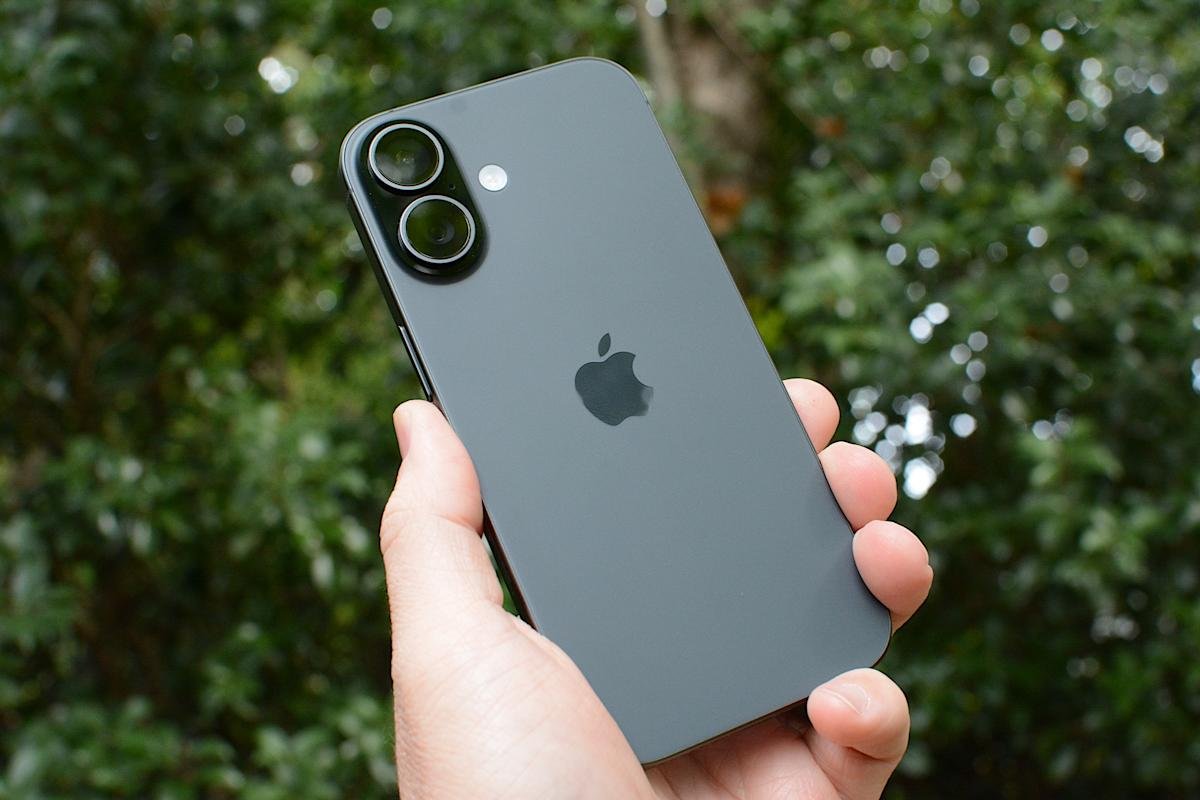
Apple’s Satellite features were originally designed for emergencies, allowing iPhone users to contact emergency services when cellular and Wi-Fi coverage is unavailable. With recent versions of iOS, Apple has expanded those capabilities to include sending and receiving messages via satellite. This makes it possible to stay in touch with friends and family from remote locations where traditional networks do not reach, such as hiking trails, rural areas or offshore locations.
Messaging via satellite is built directly into the iPhone and works automatically when no cellular or Wi-Fi signal is available. Although it is not intended to replace regular messaging, it can be a useful backup when coverage is low.
How to send messages via satellite?
Before you begin, you must turn on iMessage Before you go off the grid. It’s also important to set up an emergency contact as well as members of your Family Sharing group before your departure. This will enable them to send you messages via SMS without you needing to send them a message first. To send a message via satellite, open messages App when no cellular or Wi-Fi signal is available. If the feature is supported in the current location, the app will display a prompt indicating that satellite messaging is available.
Selecting the option to connect via satellite launches a guided connection screen. Your iPhone will provide real-time instructions to help maintain alignment with the satellite. Once connected, a text message can be typed and sent, although delivery may take longer than usual.
iPhone will notify you when the message is successfully sent. As long as the connection remains active, the recipient’s answers will also be delivered via satellite.
What you need before sending a satellite message
Sending messages via satellite requires a compatible iPhone model and the correct software version. This feature is supported on iPhone models with satellite hardware, starting with the iPhone 14 and later. The device must be running a version of iOS (iOS 18 or higher) that supports satellite messaging, which Apple has continued to refine through recent iOS updates.
Convenience also depends on location and availability. Satellite messaging is currently supported in select regions, including the United States and parts of Canada, with expanded support gradually rolling out. The iPhone must be outside with a clear view of the sky, as trees, buildings, and terrain can interfere with the satellite connection.
Satellite messaging is not designed for continuous conversation. Messages are compressed and sent slower than standard texts, and delivery times may vary depending on conditions and satellite position.
How does satellite messaging work on iPhone
When an iPhone loses access to cellular and Wi-Fi networks, the system automatically detects that only satellite connectivity is available. Instead of failing to send, the Messages app prompts the user to connect to the satellite.
On-screen instructions guide the user to position the phone correctly. This typically involves placing the device aloft and following directional cues to align it with an overhead satellite. The phone uses built-in sensors to help maintain the connection while a message is being sent.
Messages sent via satellite are text only and use a low data format to ensure that they can be transmitted reliably. Images, videos, audio messages, and large attachments are not supported.
Who can receive satellite messages?
Depending on the recipient’s device and settings, satellite messages can be sent to contacts using iMessage or standard SMS. If the recipient is using an iMessage enabled Apple device, the message will be delivered through Apple’s messaging system. If not, the message will be sent as a standard text.
Recipients do not need a satellite-enabled device to receive messages. From their perspective, the message appears to be the same as a regular text, although delivery time may be longer.
Tips to get a reliable connection
A clear view of the sky is necessary for satellite messaging to work properly. Open areas with minimal obstructions provide the best results. Movement, heavy foliage and nearby structures may disrupt the connection.
Because satellite bandwidth is limited, keeping messages short improves reliability and delivery speed. The iPhone may prompt the user to edit long messages to fit within satellite constraints.
Battery life is also a consideration. Maintaining a satellite connection uses more power than sending standard messages, so relying on satellite features for extended periods helps save battery.
Limitations to keep in mind
Satellite messaging is designed for occasional use when other networks are unavailable. It does not support group messages, media attachments or read receipts like standard messaging.
Delivery time can range from one minute to several minutes depending on environmental conditions and satellite availability. This feature should not be relied upon for time-sensitive communications unless no other option is available.
Apple also notes that satellite features may be offered for free for a limited period of time, with potential pricing or subscription requirements introduced in the future depending on the region and carrier arrangement.
When satellite messaging can be useful
Messaging via satellite can be helpful for travelers, hikers, and anyone who spends time in remote areas where coverage is unreliable. It provides a way to check in, share basic updates, or request non-emergency assistance when traditional networks are unavailable.
Although it is not a replacement for emergency services, it complements Apple’s existing emergency satellite features by providing additional communication options when users are off the grid.
As Apple continues to expand satellite support, sending messages via satellite is likely to become a more familiar part of the iPhone experience, especially for users who regularly venture beyond the reach of cellular networks.
<a href